Viewing your command history
Maybe you used some complex regex to populate an arglist, and don't feel like starting over when you realise that you
want to use it again? This has happened to me, and I was glad to discover that VIM keeps a history of previous commands.
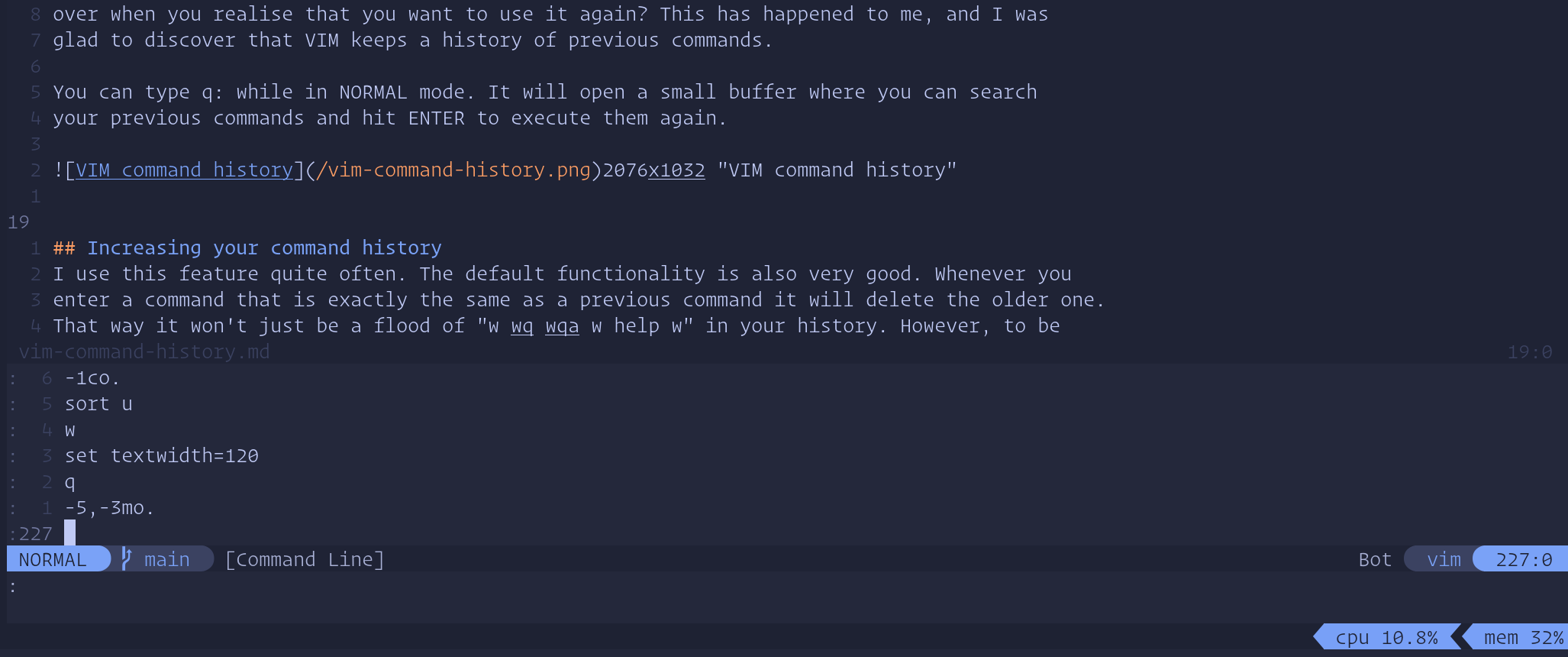
You can type q: while in NORMAL mode. It will open a small buffer where you can search your previous commands and hit
ENTER to execute them again.
Increasing your command history
I use this feature quite often and it comes with a good default configuration. Whenever you enter a command that is
exactly the same as a previous command it will delete the older one. That way it won't just be a flood of "w wq wqa w
help w" in your history. However, to be sure nothing is lost, you can increase the number of lines VIM remembers by
using the history option. I have this in my init.lua file(Neovim):
vim.opt.history=10000 -- Increase the command history
The end
I usually tweet something when I've finished writing a new post. You can find me on Twitter
by clicking